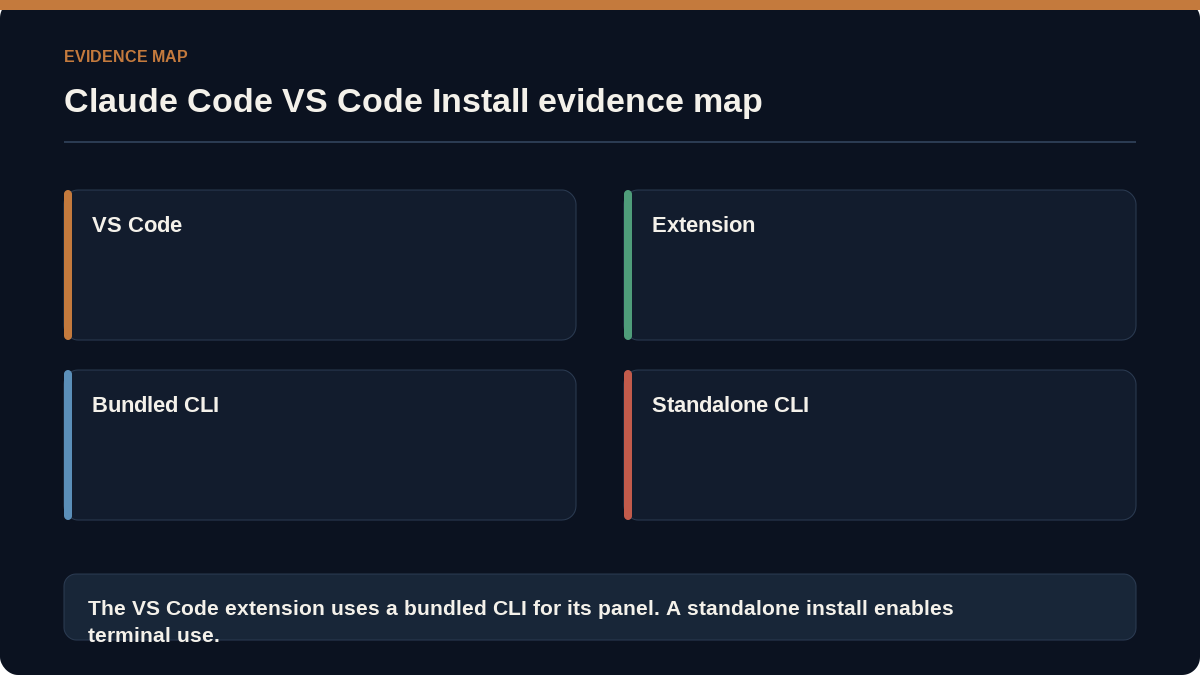
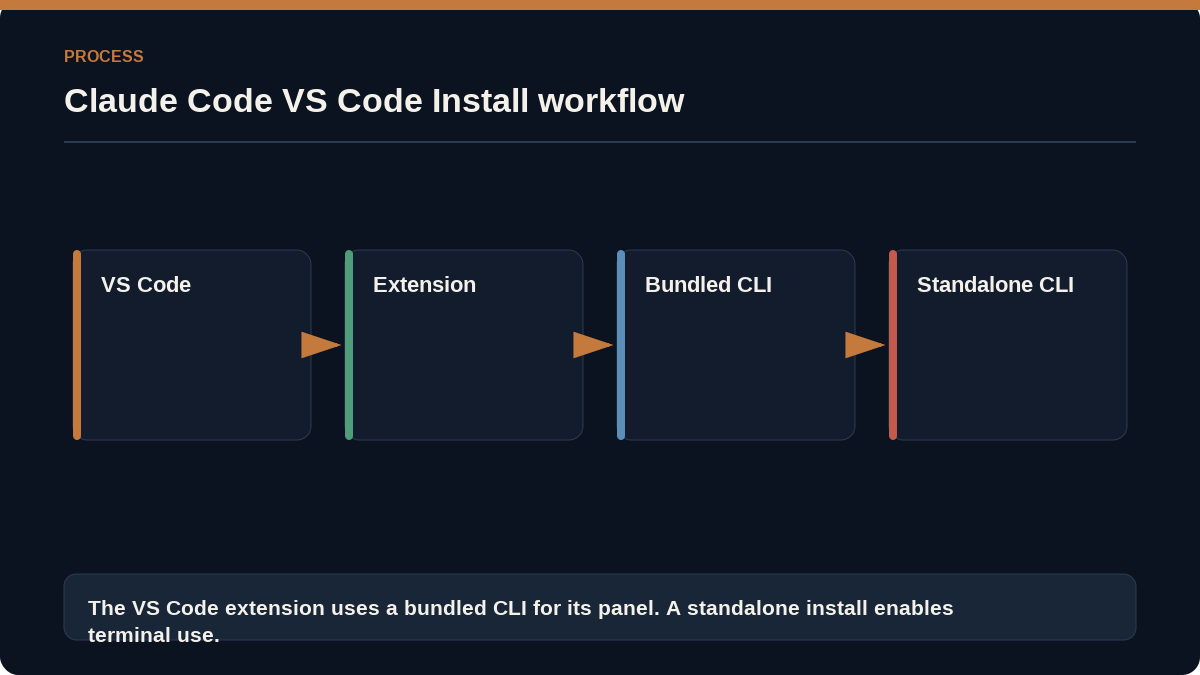
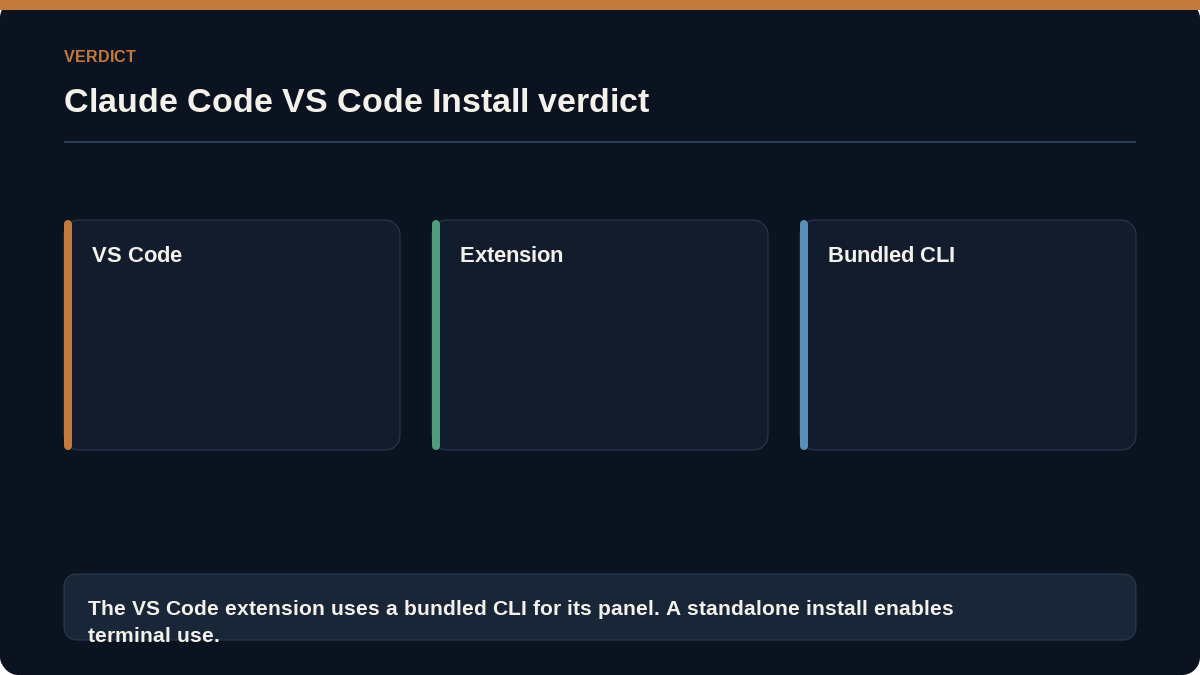
Install the Claude Code VS Code extension when you want the editor panel, and add a standalone CLI only when you also want Claude Code in a terminal. Official guidance requires VS Code 1.94.0 or later and an Anthropic account. The extension can be installed from the Marketplace or a direct link, and VS Code should be restarted if the extension does not appear. A bundled CLI powers the extension panel, while a standalone installation enables terminal use.
Authentication happens in the browser on first launch. Paid subscriptions do not require an API key, although other authentication methods have different requirements. The practical verdict is to choose the surface deliberately: the extension is not a replacement for every terminal use case, and the bundled CLI should not be assumed to expose the same visible executable path as a standalone install.
Why two installation surfaces cause confusion
Claude Code in VS Code can mean two different things. The extension provides an editor panel powered by a bundled CLI. A standalone installation provides a terminal command. Both can be useful, but they are not one installation artifact with one guaranteed executable location.
That distinction matters when a developer searches for a terminal command after installing only the extension. The panel can work while the shell still has no standalone Claude Code command. Conversely, a terminal installation can work without proving that the VS Code extension is installed. Treating either result as a failed duplicate installation sends troubleshooting toward the wrong surface.
The reverse mistake is installing a standalone CLI before deciding whether it is needed. An extra executable adds another update and PATH owner to the machine. It may be exactly right for a terminal-heavy workflow, but it is unnecessary for someone who only wants the panel.
A clean setup begins with the intended surface. Write down whether the goal is the panel, the terminal or both. That single decision determines which installation checks belong in the runbook and which ones do not.
Evidence map: requirements, installation and authentication
Official evidence supports the editor requirement, installation routes, bundled-versus-standalone distinction and first-launch browser authentication. F065 states VS Code 1.94.0 or later plus an Anthropic account. F066 names Marketplace or direct-link installation and a restart when the extension does not appear. F067 separates the bundled CLI from the standalone terminal route. F068 covers browser authentication and the paid-subscription API-key exception.
No community issue is used here. The prior WebSocket regression topic is deliberately outside this installation guide. A missing panel after a fresh install should first be handled with the documented restart guidance, not presented as proof of that separate incident.
Check the VS Code version requirement
Official guidance requires VS Code 1.94.0 or later for the extension. Check the editor’s own About information before installation. Record the displayed version so a later setup note can distinguish an unsupported editor from an extension problem.
Do not substitute a Claude Code version for the editor version. They are separate requirements owned by separate products. The extension’s bundled CLI is also not evidence that a particular standalone executable path exists.
| Setup input | Documented requirement | Verification action |
|---|---|---|
| VS Code | 1.94.0 or later | Read the editor’s About information |
| Account | Anthropic account | Confirm the intended account before sign-in |
| Extension | Marketplace or direct link | Use an official installation route |
| Standalone CLI | Only when terminal use is intended | Follow the matching standalone setup route |
The minimum editor version is a snapshot checked on 2026-11-28. Recheck it before publication or when onboarding a new machine. Do not turn it into a claim about every VS Code derivative or every future release.
An outdated editor should be updated through the organization’s normal process before extension troubleshooting continues. This guide does not invent a forced-update command or a bypass for the stated requirement.
Choose the extension panel or terminal surface
The extension panel is the natural choice when the work should stay inside the editor interface. The bundled CLI powers that panel, so a separate standalone installation is not a prerequisite for the documented extension experience.
A standalone CLI is the natural choice when the workflow includes an external terminal, shell scripts or a terminal-first routine. It can also be installed alongside the extension when both surfaces are useful. The important point is intentional coverage, not maximal installation.
| Intended surface | Installation component | Capability enabled | Verification target |
|---|---|---|---|
| VS Code panel | Extension with bundled CLI | Claude Code inside the editor panel | Extension appears and opens |
| Terminal only | Standalone CLI | Claude Code in the terminal | Terminal launch works |
| Panel and terminal | Extension plus standalone CLI | Both surfaces | Verify each surface separately |
| Unknown | Decide before installing | Avoids an unnecessary executable | Write down the actual workflow |
A panel-only user should not be told that installation is incomplete because no standalone command appears in the shell. A terminal-only user should not be told that the extension is missing when only the terminal was requested. The native install PATH guide applies when a standalone command is expected but the shell cannot resolve it.
Install the extension from an official route
Official guidance allows installation from the Marketplace or a direct link. Open the extension entry through the official Claude Code VS Code documentation, then use the Marketplace flow or the provided direct link. Check that the intended editor is the installation target.
After installation, look for the extension in VS Code. If it does not appear, restart VS Code as F066 directs. A restart is the documented next action here, not a universal explanation for every panel failure.
Avoid inventing an extension installation directory. The fact pack does not supply one, and manually placing files is not part of the documented Marketplace or direct-link route. If an organization manages extensions centrally, record that constraint rather than assuming the local Marketplace flow is available.
When the extension appears, continue to authentication. Appearance alone does not prove that the intended account is active or that the panel can complete a request.
Restart VS Code if the extension is missing
F066 specifically says VS Code should be restarted if the extension does not appear. Save work, restart the editor and inspect the extension again. Keep the action bounded: this is installation guidance, not proof that every blank panel has the same cause.
Record whether the extension became visible after the restart. If it did, the documented step resolved the visibility problem. If it did not, preserve the editor version, installation route and observed result before trying another explanation.
| Observation after install | Documented next step | Evidence to keep |
|---|---|---|
| Extension appears | Continue to first-launch authentication | Installation route and editor version |
| Extension does not appear | Restart VS Code | Whether it appears after restart |
| Extension appears but sign-in is incomplete | Complete browser authentication | Account used, without credential values |
| Standalone command is absent | Check whether standalone installation was intended | Requested surface, not a guessed path |
The browser login and logout guide explains first-launch browser behavior and the documented copy-URL fallback. Do not share authentication URLs or tokens while collecting evidence.
Understand the bundled CLI
The extension panel is powered by a bundled CLI, according to F067. Bundled means the extension brings the CLI component it needs for the panel. It does not mean the editor has installed a standalone command into every shell environment.
This distinction prevents a common false diagnosis. A working panel proves that the extension’s bundled path is functioning. It does not prove that an external terminal can resolve a separate Claude Code executable. Likewise, a shell PATH problem does not by itself explain why the extension is absent from VS Code.
| Component | What it powers | What not to assume |
|---|---|---|
| Bundled CLI | Extension panel | A shared visible path with the standalone CLI |
| Extension | Editor integration and panel surface | Coverage of every terminal use case |
| Standalone CLI | Terminal use | Automatic extension installation |
| VS Code preferences | Editor-owned extension settings | Storage of every Claude Code setting |
The VS Code settings and auto-connect guide maps editor preferences, Claude Code settings and startup-sensitive connection behavior. Use it after installation when the question shifts from “is it installed” to “which setting controls this behavior.”
Add a standalone CLI only when needed
A standalone installation enables terminal use. Decide whether the workflow actually needs that surface before adding it. If the answer is yes, follow the official advanced setup route for the operating system and record which installation owner was chosen.
Do not mix commands from different installation routes. The npm global prefix guide covers the npm route, while the native install PATH guide covers native executable resolution. Choose the guide that matches the installation rather than combining their uninstall or repair steps.
After setup, open a terminal and verify the intended launch surface. Keep the terminal test separate from the extension test. A pass in one does not prove the other.
| Setup choice | Action | Verification |
|---|---|---|
| Panel only | Install extension and authenticate | Open the panel in VS Code |
| Terminal only | Install standalone CLI through the chosen route | Launch Claude Code in the terminal |
| Both | Complete each installation independently | Verify panel and terminal separately |
| Unsure | Review the daily workflow first | Avoid installing an unused surface |
The fact pack does not establish one visible executable path shared by the extension and standalone CLI. Do not put a guessed path in the runbook. Record the installation route and the observed terminal behavior instead.
Complete browser authentication
Official guidance says authentication happens in the browser on first launch. Paid subscriptions do not require an API key. That statement is specific to paid subscription sign-in; other authentication methods can have different requirements.
Follow the browser handoff shown by the client, then return to the intended surface. Confirm that the panel or terminal is using the intended account before beginning real work. Do not paste credentials into a shared setup note. The API key security guide for AI applications provides the separate secret-handling boundary.
Paid subscription sign-in: browser authentication, no API key required by F068.The line above is a factual checklist, not a shell command. Its purpose is to keep the subscription exception visible without implying that every authentication method is keyless.
| Authentication case | Documented requirement | Boundary |
|---|---|---|
| Paid subscription | Browser authentication; no API key required | Specific to this sign-in method |
| Other methods | Requirements can differ | Check the relevant official route |
| Browser does not open | Use the documented login guidance | Do not publish the copied URL |
| Credential source is unclear | Inspect documented precedence | Do not print credential values |
The credential precedence guide explains the documented order for API keys, helpers and OAuth. It is the right follow-up when the question is which credential is active, not how to install the extension.
Verify both intended surfaces
Verification should match the installation decision. For a panel-only setup, confirm that the extension appears, opens and completes browser authentication. For a terminal-only setup, confirm that the standalone CLI launches in the intended terminal. For a combined setup, test both.
A useful record names each surface and result. “Extension installed” is incomplete if terminal use was also requested. “Terminal command works” is incomplete if the panel was the original goal. Separate rows make missing coverage visible.
Keep verification material harmless. The goal is to confirm that the intended surface opens and authenticates, not to run a sensitive task during setup. Avoid placing real credentials in screenshots or logs.
Worked example: choose only what the workflow uses
Consider a developer who reviews code in VS Code but occasionally needs a terminal. The panel is a daily requirement, so the extension belongs in the setup. The occasional terminal need may justify a standalone CLI, but that decision should be explicit rather than automatic.
| Workflow fact | Installation decision | Verification record |
|---|---|---|
| Daily work stays in the editor panel | Install extension | Extension appears, opens and authenticates |
| Terminal work is rare but intentional | Add standalone CLI if that surface is required | Terminal launch verified separately |
| No terminal need | Skip standalone installation | No missing-command investigation |
| Both surfaces required | Maintain both components | Record each result independently |
No benchmark is needed. The worked example uses the documented capability split to avoid an unnecessary installation. It also avoids assuming that the extension’s bundled CLI creates a standalone shell command.
For a team, the same reasoning can become an onboarding choice: panel, terminal or both. Put that choice at the top of the setup note. It gives the next engineer a clear stopping condition and prevents “install everything” from becoming the default.
Record installation and update ownership
The extension and standalone CLI are separate components. Record how each was installed so later maintenance goes to the correct owner. The fact pack for this post does not establish a fixed update cadence for either component, so do not invent one.
| Component | Installation evidence | Later question |
|---|---|---|
| VS Code extension | Marketplace or direct link, editor version | Is the extension present in the intended editor? |
| Bundled CLI | Powered the extension panel | Is the panel the failing surface? |
| Standalone CLI | Chosen official setup route | Is terminal use intended and working? |
| Authentication | Browser first launch, intended account | Is identity the current issue? |
The update channel and minimum version guide covers documented update controls without promising release timing. Use it for update policy rather than assuming that extension installation and standalone CLI updates are one operation.
The settings validation guide can inspect loaded and rejected Claude Code settings. It should not be presented as a Marketplace installer or a universal panel-debugging tool.
Concrete win, honest loss and practical implication
The win is surface clarity. A panel-only user can complete the documented extension route and browser sign-in without adding a standalone executable. A terminal-heavy user can add the standalone CLI intentionally and verify it separately. The bundled CLI explanation removes a false equivalence between the two surfaces.
The loss is coverage. The extension does not replace every terminal use case, and the standalone CLI does not prove that the editor extension is installed. A combined setup has two components to maintain, with no shared visible executable path guaranteed by F067.
The practical implication is to make the requested surface the first line of the setup record. Install only what that workflow needs, restart VS Code when the extension does not appear, and keep browser authentication separate from API-key configuration. For environments where the IDE does not inherit the terminal context, the WSL IDE environment guide provides related launch-context coverage.
Installation checklist
Before closing setup, confirm the following:
- VS Code is 1.94.0 or later.
- An Anthropic account is available for sign-in.
- The intended surface is written down as panel, terminal or both.
- The extension was installed from the Marketplace or an official direct link.
- VS Code was restarted if the extension did not appear.
- The bundled CLI is understood as the panel’s power source.
- A standalone CLI was added only when terminal use was intended.
- Browser authentication was completed on first launch.
- Paid subscription sign-in was not incorrectly made dependent on an API key.
- Each intended surface was verified separately.
- No extension installation path or update schedule was invented.
What the public data does not show
The supplied evidence does not establish an extension installation directory, one shared executable path, a fixed update cadence or a universal cause for a missing panel. It also does not reproduce the prior WebSocket regression, which is outside this article’s scope.
This section will be updated if official documentation publishes a clearer component map or new editor requirements. Until then, use the documented Marketplace or direct-link route, the restart step and separate surface verification. Requirements should be rechecked before publication because editor and extension details can change.
Related batch runbooks
- Terminal keybindings and Shift+Enter compatibility covers input behavior after the terminal surface is available.
- tmux passthrough and notification bells handles a terminal multiplexer layer.
- Light, dark and custom terminal themes configures appearance without changing installation ownership.
- VS Code preferences, auto-connect and relaunch maps settings after installation.
- JetBrains CLI and Marketplace plugin installation documents another paired IDE setup.
- Native install PATH and binary ownership helps when a standalone command is expected.
- npm Node requirement, global prefix and PATH covers the npm installation route.
- Update channels and minimum version controls separates update policy from installation.
- Settings validation with status and doctor inspects accepted and rejected configuration.
- Global config versus settings.json classifies IDE-related keys.
- Browser login and logout state covers first-launch authentication mechanics.
- Credential precedence across API keys, helpers and OAuth identifies an active credential source.
- Settings env and startup timing explains when a relaunch is needed.
One AI option for OpenAI-format agents
One AI’s active option is for OpenAI-format agents using https://api.oneaiapikey.com/v1, one key and the 46 live free IDs. That is not an Anthropic-format route for Claude Code, and the One AI Claude IDs were unavailable on 2026-11-27. For a separate OpenAI-format project, review the free model catalogue, follow the OpenAI-format quickstart or estimate usage with the cost calculator. The OpenAI versus Anthropic API format guide and the free IDs for Claude Code users explainer explain why the free IDs should not be presented as Claude Code credentials.
FAQ
Do I need a standalone CLI to use the VS Code extension?
No. The extension panel is powered by a bundled CLI. Add a standalone installation when you also want terminal use.
What VS Code version does the extension require?
F065 states VS Code 1.94.0 or later, along with an Anthropic account. Recheck the requirement before publication or onboarding.
Where can I install the extension?
Official guidance supports the Marketplace or a direct link. Restart VS Code if the extension does not appear after installation.
Does paid subscription sign-in require an API key?
No. F068 says paid subscriptions do not require an API key for this flow. Other authentication methods have different requirements.
Should the extension and standalone CLI share an executable path?
Do not assume that. F067 distinguishes the bundled CLI powering the panel from the standalone installation that enables terminal use.
More Claude Code troubleshooting
- Claude Code Homebrew Install: Manage Cask Updates Manually
- Claude Code WinGet Install: Locate the Binary and Maintain PATH
- Claude Code Linux Packages: Compare apt, dnf and apk Updates
- Claude Code Uninstall: Remove Binaries and Preserve Configuration
- Claude Code Credential Storage: macOS, Linux and Windows Paths
- Claude Code CLAUDE_CONFIG_DIR: Absolute Paths for Auth Storage
- Claude Code SSO Login: Restrict Organization and Login Method
- Claude Code apiKeyHelper: Dynamic Keys and Refresh Timing
- Claude Code Settings Precedence: Five Scopes in Exact Order
- Claude Code Settings Merge: Project Local Versus User Values
- Claude Code JetBrains External Terminal: Host Install and /ide
- Claude Code Dev Container Feature: Install and Node Fallback
- Claude Code Dev Container Auth: Persist Config With a Volume
- Claude Code Docker Config Mount: Permissions and Write Access
- Claude Code VS Code Dev Containers: Align CLAUDE_CONFIG_DIR
- Claude Code Container User: Align HOME, Config and Workspace