Direct answer
Install Claude Code on the machine that runs the external-terminal session, install the JetBrains Marketplace plugin in the IDE, then run /ide from Claude Code to connect. For remote development, the official JetBrains guidance requires Claude Code on the host. A local CLI does not automatically control an IDE whose development session runs elsewhere. Verify the pairing through the IDE’s native diff viewer and active-tab selection sharing, not only through a successful CLI response.
Why host placement matters
A terminal window can look local while its process runs on another machine. That distinction decides which host needs the CLI and which environment launches it. Installing the executable on a laptop does not make it available inside a remote development host. Conversely, installing it on the host does not prove that the IDE-side plugin has loaded or that the terminal process can discover the intended IDE window.
Repeated sign-in prompts are a common reason teams start moving files and reinstalling packages. Those actions can destroy the comparison that would identify the actual failure. Keep the repository, IDE project and launch route fixed while checking the host pairing. The configuration-directory relocation guide becomes relevant only after the execution host is clear.
The cost is more than setup time. A wrong pairing can send a developer through credential checks, plugin updates and network changes that do not address host placement. It can also create two plausible configuration roots, making later support harder. Capture where Claude Code runs, where JetBrains runs and which terminal starts the process before changing either component.
Evidence boundaries
Official, F077: the JetBrains integration documentation documents /ide for external-terminal integration. That supports the connection step, not a promise that every terminal route will discover every IDE automatically.
Official, F078: remote development requires installing Claude Code on the host. The fetched guidance does not provide a universal networking recipe, fixed port list or firewall design. This article therefore stops at placement and connection verification.
Official, F079: the integration uses the IDE’s native diff viewer and shares active-tab selection context. Those surfaces provide visible verification after connection. They do not establish a prompting technique or guarantee that every project action will appear correctly without checking the actual pairing.
Unknown: the supplied evidence does not define one remote topology for all JetBrains products, terminal bridges or host arrangements. Treat the procedure as a placement checklist, then follow the current vendor documentation for the specific remote-development product when the basic pairing fails.
Choose local or remote-host execution
Begin with the process location, not the appearance of the window. A local development session normally pairs a terminal on the workstation with a JetBrains IDE on that workstation. A remote development session can place project execution and the terminal on a host while the IDE window remains on the client. The latter needs Claude Code on that host under F078.
| Execution location | Where Claude Code must be installed | Where the JetBrains plugin belongs | First verification |
|---|---|---|---|
| Local workstation session | The workstation that launches the external terminal | The local supported JetBrains IDE | Run /ide, then inspect an IDE-side surface |
| Remote development host | The host that runs the development session and terminal process | The IDE environment used for the remote project | Confirm host CLI, plugin and /ide pairing |
| Client terminal that reaches a remote host | Not the client merely because its window is visible there | The IDE environment associated with the remote project | Inspect the actual process host before troubleshooting |
| Unclear or mixed setup | Record both locations before installing anything | Record both IDE contexts before updating anything | Resolve the topology first |
A remote client may still run a separate local project. Label each window and project so evidence from one does not get attributed to the other. If a developer switches between a local checkout and a remote checkout, the executable and plugin checks must follow the checkout under test.
Use the JetBrains CLI and Marketplace plugin installation guide for the paired installation. That guide owns component installation. This guide owns the external-terminal connection after those components exist.
Install the CLI on the execution host
Follow the documented setup route for the host operating system. The important test is availability inside the exact terminal environment that will launch Claude Code. A successful installation in an administrative shell does not prove that the development terminal resolves the same executable or inherits the intended configuration.
The native install PATH and binary ownership guide helps separate an executable-resolution problem from an IDE connection problem. Keep that check narrow. Do not reinstall when /ide fails after the CLI has already started successfully.
Authentication is another layer. Confirm that the intended account can authenticate on the execution host before testing IDE discovery. The browser sign-in and logout guide covers first-launch handoff without treating uninstall as a credential reset. A login failure and an external-terminal pairing failure can look similar because both block useful work, but they require different evidence.
For remote hosts, record the host identity in neutral terms that your team permits. Avoid pasting tokens, authorization URLs or credential files into the pairing record. The credential storage path reference explains where supported operating systems keep credentials without requiring their contents to be displayed.
Install the JetBrains plugin
The Marketplace plugin is a separate component from the CLI. Install it in the JetBrains environment that owns the project window, then verify that the IDE has loaded it. The paired JetBrains installation runbook covers the supported product list and the documented plugin auto-update setting.
Keep update ownership explicit. Plugin auto-updates do not answer whether the CLI on a remote host has changed. Likewise, a host CLI update does not prove that the IDE loaded a new plugin version. Separate the components before comparing a working setup with a failing one.
The official JetBrains page lists IntelliJ, PyCharm, Android Studio, WebStorm, PhpStorm and GoLand. Do not infer support for another product from a similar name or shared platform. If the IDE is outside the documented list, treat compatibility as unknown rather than forcing the external-terminal procedure.
Open the external terminal
Open the terminal from the development context that owns the project. This keeps the process close to the workspace and makes the intended host easier to identify. An unrelated terminal can still launch a valid CLI, but its environment and project location may not match the IDE window you want to connect.
Start Claude Code in that terminal and keep the IDE window open. If the host is remote, confirm that the session itself is remote before continuing. A terminal label is useful evidence, but it is not proof of process location.
The settings environment and process replacement guide explains why inherited shell values and settings-file values need separate checks. Use it when connection behavior differs between launch routes. Do not change unrelated model or permission settings while testing the IDE handoff.
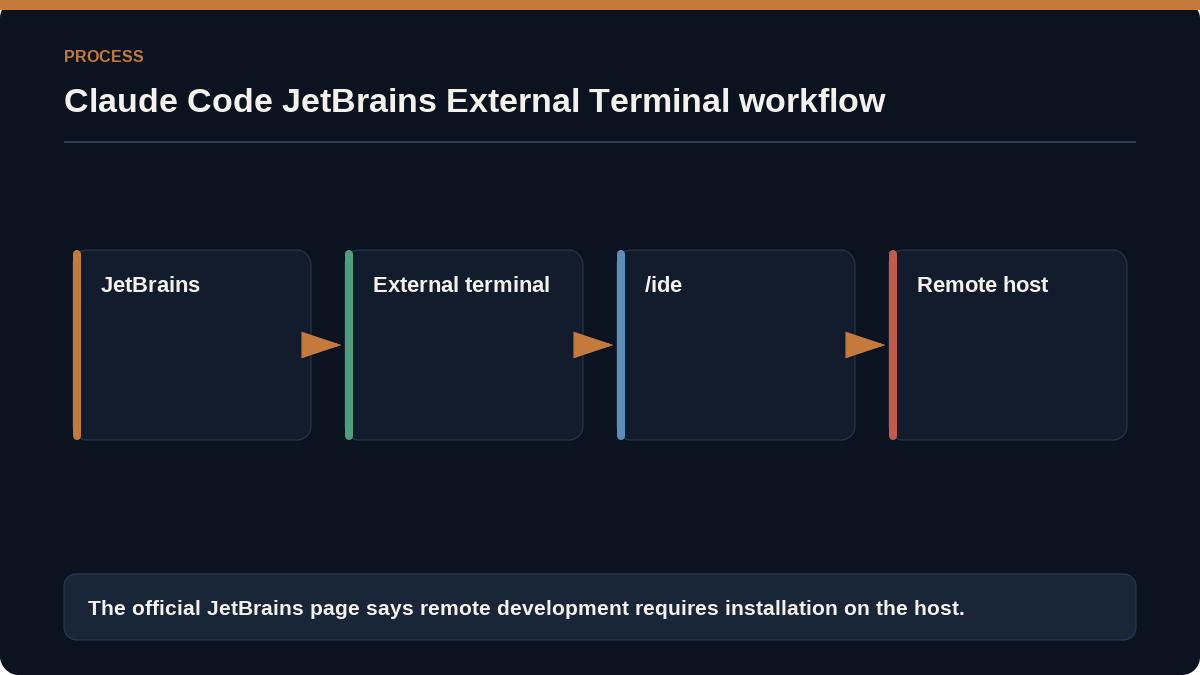
Run /ide to connect
Run the documented command from the Claude Code session:
/ideOfficial, F077: this is the external-terminal integration command on the JetBrains page. Use it after the host CLI and IDE plugin are in place. If discovery fails, preserve the exact symptom and the host pairing instead of cycling through unrelated settings.
A successful command result should lead to an IDE-visible check. Claude Code answering a question proves that the CLI works. It does not prove that the external terminal controls the intended JetBrains window.
| Connection step | Verification action | Evidence to retain | Do not infer |
|---|---|---|---|
| Confirm execution host | Compare the terminal session with the intended development host | Host label and project location | The visible client window is the process host |
| Confirm plugin context | Inspect the JetBrains project environment that should receive the connection | IDE product and project identity | Any open IDE window is the correct target |
Run /ide |
Observe the connection result in the same session | Exact message class without secrets | A CLI response proves attachment |
| Check native diff | Request a harmless IDE-side diff through the normal workflow | Whether the JetBrains viewer opens | A viewer proves all IDE features |
| Check active tab | Compare the active file and selection with the IDE | File identity and selection context | Selection proves every context surface |
The VS Code auto-connect and relaunch guide covers a different IDE’s connection controls. Its timing lesson is useful, but its setting names should not be copied into a JetBrains setup.
Verify native diff viewing
Use a small, reversible change in a disposable branch or harmless sample file. The goal is not to test generation quality. The goal is to see whether Claude Code’s diff surface appears in JetBrains’ native viewer.
A pass means the expected IDE viewer opens for the intended project. A fail can mean wrong pairing, missing plugin, wrong host or a separate IDE problem. Note which condition you actually observed. Avoid treating every diff failure as a remote-network fault.
Official, F079: native diff viewing is part of the JetBrains integration. This makes it a strong connection check because it crosses from the terminal process into an IDE-owned surface. It still does not prove that active-tab selection, permissions or every edit route share the same behavior.
The proof-of-work reporting guide provides a useful evidence pattern. Keep the task small, record the launch route and attach the visible result. A screenshot may help when permitted, but redact private code and account details before sharing it outside the team.
Check active-tab selection sharing
Switch to a harmless source file in JetBrains, place the cursor in a known section and compare that context with the external-terminal session. The official integration shares active-tab selection context. This check verifies that the IDE side is supplying the expected project context rather than merely displaying an unrelated window.
Do not expand this into a prompting exercise. The point is to verify the connection surface named in F079. If the active tab differs, first check that the external terminal belongs to the same project and development host.
A mismatch is useful evidence. It narrows the next action to project identity, IDE focus or connection state. It does not establish a universal selection bug. Keep the file names and observed state in the pairing record so another developer can repeat the same check.
Record the host and IDE pairing
Create a short record that another developer can compare with their own setup. Include the execution host label, JetBrains product, project identity, terminal launch route, CLI installation owner and plugin context. Include whether /ide, native diff and active-tab checks passed.
| Record field | Local example shape | Remote example shape | Why it helps |
|---|---|---|---|
| Execution host | Workstation identifier | Development-host identifier | Prevents client and host evidence from mixing |
| IDE product | Supported JetBrains product name | Supported product in the remote context | Keeps compatibility inside the documented list |
| Project | Local project path or identity | Remote project path or identity | Distinguishes two open checkouts |
| Terminal route | Workstation external terminal | Host terminal used by remote development | Identifies the process launch environment |
| CLI owner | Documented installation route | Documented host installation route | Avoids mismatched uninstall or update steps |
| Verification | /ide, native diff, active tab |
/ide, native diff, active tab |
Proves surfaces instead of assuming attachment |
Do not include credential values or unrelated environment variables. The settings-file secret exposure guide explains why configuration evidence needs careful handling even when it contains no password field.
Worked example: move the session, not the assumption
Suppose a developer uses a local JetBrains window but opens the project through a remote development host. The local workstation already has Claude Code, so the first /ide attempt appears ready. Under F078, that local installation is not the required host installation for the remote session.
The safe sequence is to record the topology, install or verify Claude Code on the development host, confirm the plugin in the IDE project context and run /ide from the host terminal. No invented port or firewall change belongs in this sequence. If the host terminal connects but diff viewing fails, investigate the IDE-side surface next rather than moving the CLI back to the client.
Now consider the opposite case. The developer uses a genuinely local project and the host CLI starts correctly, but /ide cannot find the IDE. Check the plugin context and supported product before changing network settings. If native diff works but active-tab context does not, preserve that partial success and narrow the investigation to IDE focus or project identity.
Derived diagnostic classification: a successful local CLI plus a remote project is a placement mismatch until the host installation is verified. A connected diff viewer plus a mismatched active tab is a partial integration result, not proof of either total success or total failure.
Practical connection checklist
Work in order and stop after the first failed layer. Each item should produce evidence before the next change.
- Label the execution host and the IDE window that owns the project.
- Verify Claude Code in the terminal environment on that host.
- Verify the JetBrains plugin in the matching IDE project context.
- Confirm the product appears on the official supported list.
- Start Claude Code from the external terminal used for that project.
- Run
/ideand record the result without exposing secrets. - Open a harmless diff and check for JetBrains’ native viewer.
- Compare the active file and selection with the IDE.
- Record passes and failures separately.
- Change only the layer supported by the evidence.
The settings validation and doctor guide helps when configuration inspection is needed. It does not replace the host and plugin checks above. Likewise, the WSL IDE environment-boundary guide is relevant only when a Windows and Linux boundary is part of the actual topology.
Concrete win, loss and implication
Win: a remote developer can place the CLI on the required host, run /ide and confirm the pairing through a native JetBrains diff plus active-tab context. That produces visible evidence instead of another ambiguous login attempt.
Loss: installing Claude Code only on the client leaves a remote session without the required host executable. Even a correct host installation can fail to prove the IDE connection if no IDE-side surface is checked.
Implication: make host placement a recorded setup field. A team that stores only the IDE product and account name will keep misrouting remote failures into local credential work.
Data gap and future update
The official source does not supply a universal remote-host network configuration. It also does not establish that every terminal bridge behaves identically. Recheck the current JetBrains page when the remote-development product changes, and update this runbook if a later official source adds a documented discovery or networking procedure.
No issue outcome, fixed version or measured connection success rate is asserted here. The article remains useful without those claims because the decision depends on process location and visible IDE behavior.
One AI option for OpenAI-format agents
If you also operate agents that use the OpenAI request format, One AI provides one key for https://api.oneaiapikey.com/v1 and lists 46 live free IDs at the free model catalogue. That offer applies to OpenAI-format agents. It is not a Claude Code model source, and the free IDs are not presented as credentials that work inside Claude Code.
Related batch runbooks
- Paired JetBrains CLI and Marketplace plugin setup
- VS Code extension versus standalone CLI ownership
- Absolute CLAUDE_CONFIG_DIR paths across launch contexts
- Shell environment versus settings-file replacement timing
- Credential storage paths by operating system
- Five settings scopes and their precedence
- Settings validation with status and doctor
- Official dev container feature and conditional Node fallback
- Persistent dev container authentication volume
- Docker bind-mount ownership and write access
- VS Code Dev Containers path and user alignment
- Container HOME, config volume and workspace alignment
For format boundaries, keep the OpenAI versus Anthropic compatible API guide separate from IDE discovery. The custom Claude Code API base URL resource addresses endpoint configuration, not external-terminal attachment. More installation and identity articles are available in the Claude Code blog collection.
FAQ
Does a local Claude Code install control a remote JetBrains IDE?
No automatic control follows from a local install. Official guidance requires Claude Code on the host for remote development. Install or verify it in the host terminal environment, then use /ide and check the IDE-side surfaces.
What does /ide verify?
It is the documented external-terminal integration command. Its result should be followed by a visible check such as the native JetBrains diff viewer. A working CLI response alone does not prove that the intended IDE window is connected.
Should I change firewall rules before checking host placement?
Not from this evidence. The official page does not provide a universal port or firewall recipe. First identify the execution host, verify the host CLI and confirm the plugin context. Follow the specific remote-development product’s current documentation if the basic pairing still fails.
Why check both diff viewing and active-tab context?
They verify different integration surfaces named in official guidance. Native diff viewing shows that an IDE-owned viewer can receive the result. Active-tab selection sharing shows that the IDE supplies the expected project context. One pass does not guarantee the other.
More Claude Code troubleshooting
- Claude Code Homebrew Install: Manage Cask Updates Manually
- Claude Code WinGet Install: Locate the Binary and Maintain PATH
- Claude Code npm Install: Node 22, Global Prefix and PATH
- Claude Code Linux Packages: Compare apt, dnf and apk Updates
- Claude Code Update Channels: Stable, Latest and Minimum Version
- Claude Code Uninstall: Remove Binaries and Preserve Configuration
- Claude Code Credential Precedence: API Key, Helper and OAuth
- Claude Code SSO Login: Restrict Organization and Login Method
- Claude Code apiKeyHelper: Dynamic Keys and Refresh Timing
- Claude Code Settings Merge: Project Local Versus User Values
- Claude Code Global Config: ~/.claude.json Versus settings.json
- Claude Code Terminal Keybindings: Shift+Enter Compatibility Guide
- Claude Code tmux Setup: Passthrough Keys and Notification Bells
- Claude Code Terminal Theme: Light, Dark and Custom JSON