Direct answer and practical verdict
Use the npm route only with Node.js 22 or later, install with npm install -g @anthropic-ai/claude-code@latest, and do not use sudo. Official (F010, F011): those are the documented runtime requirement and installation command, together with the no-sudo guidance. If claude is missing afterward, inspect the npm global prefix and the current shell’s PATH before reinstalling. Derived from F011: the documented command installs the package, but package installation and shell command resolution are separate steps, so a successful install does not by itself prove that the executable directory is on PATH. Community (F012): one January 2026 issue reported a v2.1.15 change affecting the reporter’s Dockerfile, but the page was search-only and the official setup page still documents npm. The win is a user-owned global CLI with a diagnosable prefix. The loss is that Node version, prefix and shell resolution are three separate checks. Do not turn one Dockerfile report into a claim that npm support was removed.
Why a successful npm install can still look missing
A global npm installation places package files under npm’s configured global prefix. The command launcher belongs to that installation, but a shell can discover it only through its executable search path. Package success and command resolution therefore answer different questions.
A second variable is the runtime. Official (F010): the npm route requires Node.js 22 or later. An older runtime should be corrected before diagnosing package ownership. The requirement belongs to this installation route; it is not a reason to reject the documented native routes.
A third variable is privilege. Official (F011): the setup instructions say not to use sudo. Running a user-level package installation as an administrator can create files with different ownership and can make later repairs harder. Start with the intended user’s Node and npm configuration.
The practical cost of skipping these checks is duplicated work. A reinstall can succeed again without changing the prefix or PATH. Switching to another installation route can leave the npm copy behind. Mixing native, Homebrew, WinGet or Linux package cleanup with npm removal makes ownership less clear.
This guide covers installing the Claude Code CLI package itself. Project dependencies, build scripts and generated code are outside scope. The dependency install side-effects guide covers broader package risk, while this article stays on runtime, global prefix and executable discovery.
Confirm the documented Node.js requirement
Check the Node runtime in the same account and shell that will run npm. The command below is a local operator inspection, not an additional Claude Code version requirement.
node --versionCompare the reported major version with F010. Node.js 22 or later satisfies the documented npm-route requirement. An older major version does not. Do not infer support for an unlisted runtime or invent a patch-level minimum.
If multiple Node installations exist, record which executable npm uses. A version printed by one terminal can differ from the runtime launched by another tool or environment manager. The useful evidence is the active node, the active npm and the user context together.
Correct the runtime through the machine’s chosen Node management process. This packet does not prescribe a Node installer, version manager or operating-system package. Avoid solving a user-level CLI problem by installing global packages with administrator privileges.
Runtime prerequisite versus the check to perform
| Prerequisite | Documented rule | Local check | Boundary |
|---|---|---|---|
| Node.js major version | 22 or later for the npm route (F010) | node --version |
Not a native-route requirement |
| npm availability | Needed to run the documented command (F011) | Inspect the active npm executable | No npm version minimum is supplied |
| Intended user | Should own the user-level install | Record account and shell context | Administrator context can differ |
| Global prefix | Determines package location | npm prefix -g |
Prefix alone does not prove shell visibility |
| Executable resolution | Determines the selected claude |
command -v claude on Bash-like shells |
Output is local evidence, not a fixed path |
Inspect the npm global prefix
Ask npm where global packages belong for the active configuration. This operator command exposes the prefix used by the installation instead of relying on a remembered default.
npm prefix -gThe global prefix is a directory, not the executable itself. npm’s global command launcher is normally associated with the prefix’s executable directory, but verify the actual resolved path on the machine rather than assuming a universal suffix. The fact pack does not provide one fixed prefix for every operating system or configuration.
Compare that prefix with the shell’s effective PATH. If the launcher directory is absent, a successful global install can remain invisible. If another claude appears earlier in the search order, the shell can select that copy instead.
Record the prefix before changing it. A prefix change affects where global packages are installed and can split existing tools across locations. It is not a casual fix for one missing command. Prefer a user-scoped correction supported by the machine’s Node setup when the current prefix requires administrator access.
The native install PATH and binary ownership guide explains ordered shell lookup. The settings env and process replacement guide covers a different issue: settings-file environment values can replace inherited shell values in most sessions.
npm global prefix versus executable resolution
| Observation | What it establishes | Next action | Do not conclude |
|---|---|---|---|
| Prefix is user-writable | User-level global installation is plausible | Install without sudo and verify ownership |
That PATH is already correct |
| Prefix requires administrator access | Current configuration may conflict with user-level install guidance | Review Node/npm ownership before proceeding | That sudo is the recommended fix |
Prefix’s launcher directory is absent from PATH |
Shell lookup may miss the installed command | Test a user-level path correction | That the package failed to install |
Another claude resolves first |
A different executable wins | Identify its installation owner | That npm is broken |
| Fresh shell resolves the npm command | Persistent lookup works in that context | Compare the path with npm ownership | That every IDE uses the same environment |
| No command resolves | Discovery failed in this shell | Check package record, prefix and search path | That one reinstall will necessarily help |
Install the CLI package globally
Run the documented command as the intended user after confirming Node.js 22 or later. Preserve the package name and @latest tag exactly when following the official instruction.
npm install -g @anthropic-ai/claude-code@latestOfficial (F011): the instruction explicitly says not to use sudo. If npm reports a permissions problem, stop and inspect the global prefix and ownership. Do not convert that error into an administrator installation by default.
After the operation, inspect npm’s global package record for @anthropic-ai/claude-code. The package record supports npm ownership. It does not prove that the current shell can find the launcher, so command resolution remains a separate step.
Recheck the official setup page before publication or before a new setup. The command is a documented snapshot, not a promise that package tags or installation instructions never change. No alternative package name, version pin or registry argument is supplied by this fact pack.
A global install is also not a project dependency install. Do not add the CLI to a project’s package.json merely because the command is missing from the terminal. That change would answer a different question and can alter repository dependency behavior.
Installation evidence
| Evidence | Purpose | Safe capture |
|---|---|---|
| Active Node major version | Checks F010 | Reported version without private environment details |
| Active npm location | Explains which npm configuration is used | Resolved executable path |
| Global prefix | Locates global package ownership | Output of npm prefix -g |
| Install result | Separates package completion from lookup failure | Reported npm outcome |
| Global package record | Confirms npm owns the CLI package | Package name and locally reported state |
Resolved claude |
Identifies the selected executable | Full observed path |
Resolve the installed executable
Use a read-only resolution command in the shell where claude is expected to work. On Bash-like shells, command -v claude reports the command the shell would select.
command -v claudeCompare the result with npm’s global prefix and package record. A path consistent with the npm-owned launcher supports the npm route. A path elsewhere means another copy is winning. No result returns the audit to package completion, prefix and PATH.
Bash users can also inspect multiple matches with type -a claude. Multiple results are useful because they reveal competing installations. Do not assume the first line from every shell command has identical semantics; record the actual selection behavior of the shell in use.
A version report without a path is incomplete evidence. Two machines, two users or two shells can resolve different executables. Keep the resolved path beside the Node version, npm prefix and installation owner so a later update or removal decision has context.
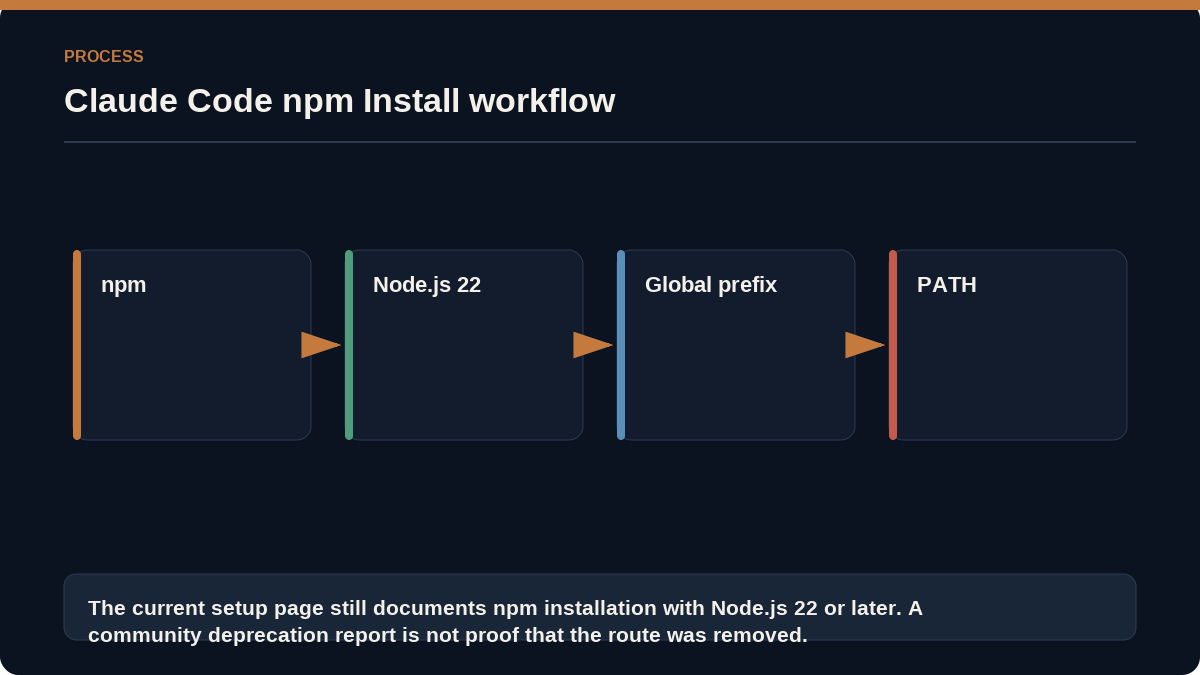
Installation symptom versus the least invasive next action
| Symptom | Evidence to collect first | Least invasive next action | Escalate when |
|---|---|---|---|
| Node major version is below 22 | Active Node executable and reported version | Correct the runtime through the chosen Node setup | Runtime ownership is unclear |
| npm reports permission errors | Global prefix and directory ownership | Review user-level npm configuration | Correction would affect other global tools |
| Install succeeds, command missing | Prefix, PATH and shell resolution |
Test the user-level launcher directory in PATH |
Fresh-shell lookup still fails |
Another claude resolves |
All matches and their owners | Identify the intended installation route | Removal or reordering is unclear |
| Command resolves, CLI fails later | Resolved path and runtime context | Move to application diagnostics | Failure is not an executable-discovery issue |
| Package record absent | npm global package list | Review the exact install operation | Repeated package operations fail without explanation |
Repair PATH at the user level
When the package is installed, the runtime satisfies F010 and the launcher directory is missing from PATH, a user-level search-path correction is the smallest plausible repair. Test it in the current shell before changing startup configuration.
First, determine the actual launcher directory from the machine’s npm setup. Do not paste a guessed prefix into a shared runbook. Once the directory is known, prepend it for the current Bash-like session using an explicit variable.
export PATH="<npm-global-launcher-directory>:$PATH"The angle-bracket value is a label for a locally observed directory, not a literal path to install. Replace it only after inspecting npm’s prefix and the launcher location. This operator procedure does not claim that every npm configuration uses the same directory suffix.
Run command -v claude again. If it resolves to the npm-owned executable, test persistence in the reviewed startup file for that shell and user. Avoid replacing the entire PATH; other tools need their existing entries. Avoid appending the same export after every troubleshooting attempt.
Open a fresh shell after persistence. An export in one process cannot repair an already running shell. If an IDE or terminal manager launches through another environment, verify that context separately. The VS Code auto-connect and relaunch guide explains why startup context can change observed behavior.
Official (F011): do not use sudo for the npm installation. A user-level path correction should preserve that ownership model. If the only apparent fix is administrator access, revisit the prefix instead of hiding the conflict.
A safe PATH sequence
- Confirm the active Node major version satisfies F010.
- Record npm’s global prefix and the intended user.
- Install the documented package without
sudo. - Inspect the global package record.
- Identify the actual launcher directory from local evidence.
- Compare it with the current shell’s search path.
- Test a user-level export only when the directory is missing or loses to an understood conflict.
- Persist the reviewed change and verify it in a fresh shell.
Avoid duplicate package-manager copies
Native, npm, Homebrew, WinGet and Linux system packages can coexist on a machine. Each route has a different owner. A shell may select only one, which makes update and removal behavior appear inconsistent when different terminals or users choose different copies.
Before removing a duplicate, identify the intended route. If npm should own the CLI, confirm the resolved path belongs to the npm global installation. If a native copy wins, decide whether to reorder search paths or remove the native installation through its own method. Do not delete files based on name alone.
The uninstall and configuration retention guide explains route-specific removal and why configuration deletion is a separate choice. Native cleanup does not remove an npm global package, and npm removal does not prove that every claude on the machine is gone.
Homebrew and WinGet add the same ownership question on their platforms. The Homebrew cask maintenance guide and WinGet executable guide show how package records and shell resolution work together. The Linux apt, dnf and apk comparison covers system-package ownership.
Duplicate ownership matrix
| Resolved executable | Likely owner | Verification | Maintenance path |
|---|---|---|---|
| Path under the observed npm global installation | npm | Global package record and prefix | npm route |
~/.local/bin/claude on macOS, Linux or WSL |
Native | Native path and installer evidence | Native route |
| Homebrew-reported application | Homebrew cask | Cask record and resolved path | Homebrew route |
| WinGet-reported package executable | WinGet | Anthropic.ClaudeCode record and resolved path |
WinGet route |
| Linux system-package-owned file | apt, dnf or apk | System package record | Matching system package manager |
| Unknown path | Unknown | Collect installation records before action | Stop before removal |
Verify the npm-owned installation
Record the local runtime and prefix
A complete verification ties together runtime, package and shell evidence. Record Node.js 22 or later, the active npm prefix, the global package record, the resolved executable and the user context. That packet is more useful than a screenshot of a version string.
Run the final resolution check in a fresh shell after any PATH edit. Compare the selected path with npm’s package ownership. If the path agrees, proceed to normal CLI verification. If it does not, investigate the earlier executable rather than reinstalling blindly.
A working command still does not establish successful authentication. The browser redirect and logout guide covers first-launch sign-in, while the credential precedence audit explains which credential source can win. Those topics begin after executable discovery succeeds.
Configuration paths can also affect later behavior without changing binary ownership. The absolute CLAUDE_CONFIG_DIR guide and credential storage OS path reference provide those references. Do not edit credential files to solve a missing command.
Read the community report without overgeneralizing
Community (F012): GitHub issue #20402 contains an individual January 2026 report that a v2.1.15 change deprecated npm installation for the reporter’s Dockerfile. The research pass reviewed a search result only. Issue state, maintainer response and any fix were not fetched.
That report is useful as a signal to investigate a specific container scenario. It is not proof that npm support was removed for every user. Official (F010, F011): the current setup page still documents the npm route, requires Node.js 22 or later and provides the global installation command.
Keep the conflict visible. Official documentation determines the supported route in this article; the community report describes one reporter’s experience. Do not invent a closure reason, fix version or universal Dockerfile failure.
A future update should fetch the issue and any linked primary guidance before adding a container workaround. Until then, the honest conclusion is bounded: npm remains documented, and one search-only report requires separate verification.
Concrete win, loss and implication
A concrete win is a user-owned global install where Node.js 22 or later is active, npm records the CLI package, and a fresh shell resolves the npm-owned executable without administrator privileges. The operator can explain every layer.
A concrete loss is a split environment. A global package can exist under one prefix while the shell searches another directory, or an earlier native copy can win. A second loss is evidence quality: the Dockerfile issue is search-only, so it cannot support a claimed fix or current issue outcome.
The practical implication is to treat runtime, prefix and resolution as a three-part install contract. Fix the layer that fails. Avoid a reinstall when package ownership is already established, and avoid a universal deprecation claim when official documentation still supports the route.
Practical npm checklist
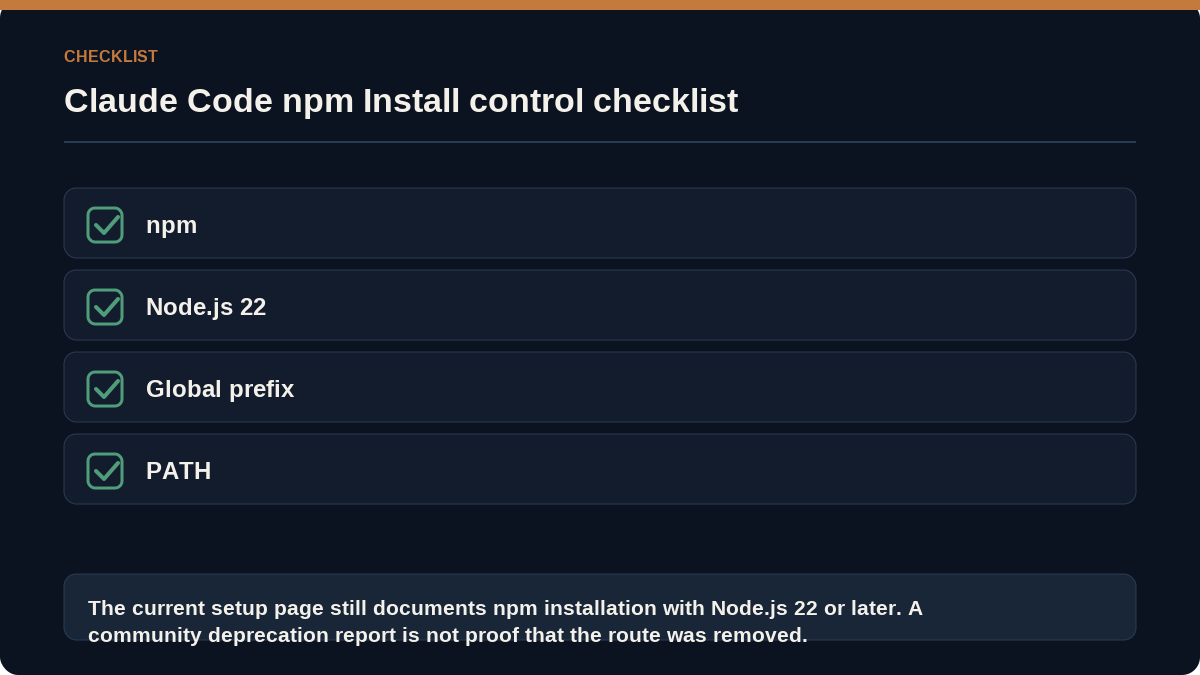
- Check the active Node major version against the documented minimum.
- Identify the active npm executable and intended user.
- Inspect the global prefix before installing.
- Use the documented package command without
sudo. - Confirm npm’s global package record.
- Identify the actual launcher directory from local evidence.
- Resolve
claudein the intended shell. - Inspect competing commands before changing search order.
- Test a user-level
PATHchange only when evidence supports it. - Persist the reviewed change and verify a fresh shell.
- Keep native and package-manager copies distinct.
- Label issue #20402 as an individual, search-only community report.
A useful escalation includes the Node major version, npm prefix, package name, redacted resolved path and exact shell. Do not send tokens, credential files or a version string without ownership context. The settings validation status and doctor guide becomes relevant only after the CLI resolves and configuration is loaded.
Honest loss and data gap
The official facts establish Node.js 22 or later, the npm command and the no-sudo instruction. They do not provide one universal global prefix, a fixed launcher directory, a required npm version or a guaranteed repair for every shell. Those details depend on local configuration and need observation.
The community report adds uncertainty rather than a fix. Its body, state and outcome were not fetched, so this article makes no claim about issue #20402 being open, closed or resolved. No current Claude Code release version is asserted.
A future update should recheck the official setup command and Node requirement, then fetch the issue before adding container-specific advice. Linked-only troubleshooting, CLI, quickstart and terminal pages remain further reading, not evidence for extra commands in this guide.
Continue with the matching batch guide
Alternative owners appear in the native PATH and binary audit, the Homebrew cask update guide, the WinGet executable guide, and the Linux apt, dnf and apk comparison. Version policy continues in the stable, latest and minimumVersion reference.
Removal and identity stay separate. Review the uninstall and configuration retention guide, the browser redirect and logout guide, the credential precedence audit, and the credential storage OS path reference.
Configuration work leads to the absolute CLAUDE_CONFIG_DIR guide, the SSO organization and login-method controls, and the apiKeyHelper refresh guide. Settings questions can use the five-scope precedence map, the project-local and user merge explanation, the status and doctor validation guide, the settings env replacement guide, and the global config versus settings.json reference.
Terminal operations are covered by the Shift+Enter compatibility guide, the tmux passthrough and bell guide, and the terminal theme placement guide. IDE setup continues with the VS Code extension and standalone CLI guide, the VS Code auto-connect guide, the JetBrains CLI and plugin guide, and the JetBrains external-terminal host guide.
Container installation belongs to the Dev Container Feature and Node fallback guide, the Dev Container auth volume guide, the Docker config mount permissions guide, the VS Code Dev Containers alignment guide, and the container user, HOME and workspace guide.
One AI API Key option for OpenAI-format agents
One AI’s active offer is for OpenAI-format agents, not for Claude Code model access. A separate OpenAI-format agent can use one key and 46 live free IDs through https://api.oneaiapikey.com/v1. Claude IDs were unavailable on 2026-11-27, so none of those IDs should be described as an npm or Claude Code credential. Review the free-model lineup and OpenAI-format quickstart for that separate agent.
FAQ
Which Node.js version does the npm route require?
Official (F010): Node.js 22 or later. Check the active runtime in the account and shell that will run npm. The requirement belongs to the npm route, not every installation method.
What is the documented npm install command?
Official (F011): npm install -g @anthropic-ai/claude-code@latest, without sudo. Recheck the setup page before a new installation because instructions can change.
Why can npm succeed while claude is missing?
The global package can be installed under a prefix whose launcher directory is absent from the shell’s PATH. Inspect npm prefix -g, the package record and command resolution before reinstalling.
Did issue #20402 prove that npm support was removed?
No. Community (F012): it is an individual January 2026 report about a v2.1.15 change affecting the reporter’s Dockerfile. The issue was search-only, and the official setup page still documents npm. No fix or current outcome is asserted.
Should I use sudo when npm reports permission errors?
Official (F011): no. Inspect the global prefix and ownership, then correct the user-level Node or npm setup. Administrator installation is not the documented remedy.
Sources
- Advanced setup - Claude Code Docs. Official source for F010 and F011.
- [BUG] v2.1.15 deprecated npm install, need to update Dockerfile #20402. Community search-only source for F012; state and outcome were not fetched.
- Troubleshooting - Claude Code Docs. Official further reading; linked-only in the research register.
- CLI reference - Claude Code Docs. Official further reading; linked-only in the research register.
- Quickstart - Claude Code Docs. Official further reading; linked-only in the research register.
- Terminal guide for new users - Claude Code Docs. Official further reading; linked-only in the research register.