Direct answer: use the image as evidence, not the whole specification
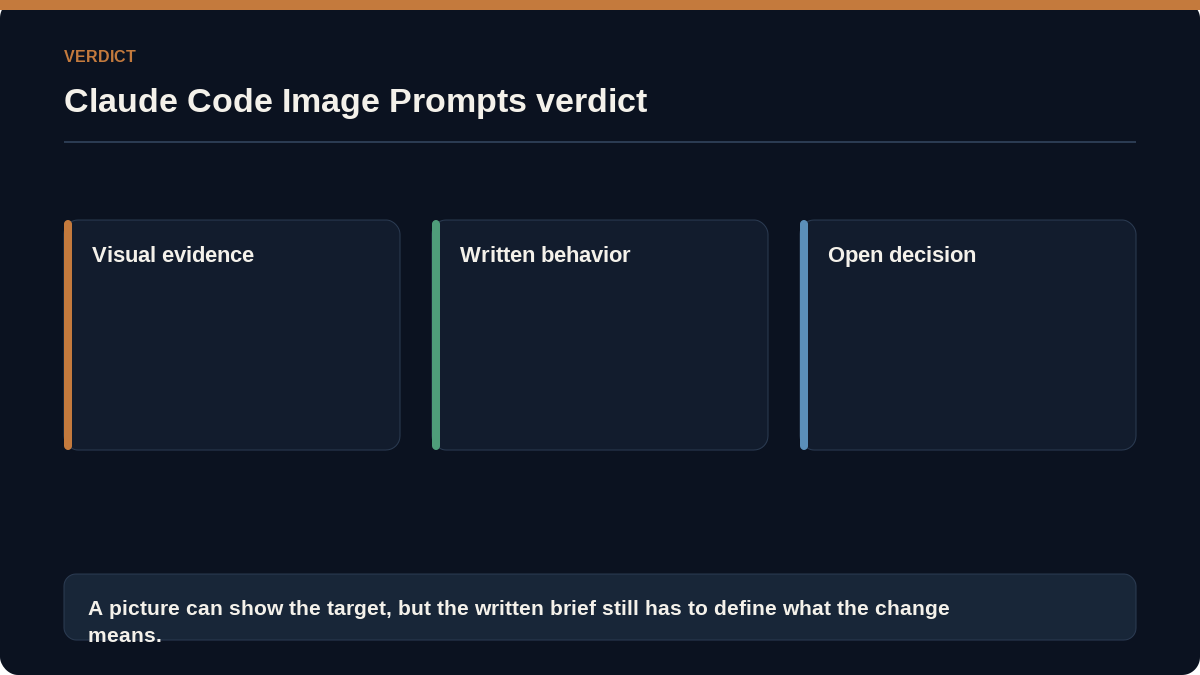
Pair every reference image with written behavior, exclusions, and acceptance conditions. State what the image is meant to show, which visible details matter, what it does not settle, and how the result should be inspected. Ask for an interpretation before editing when the visual is ambiguous.
Official common-workflows documentation supports image input through drag and drop, clipboard paste, or a path reference (F052, official). Official prompting guidance recommends clear, explicit instructions and specific output formats (F053, official). Those input methods do not establish perfect visual interpretation, and text constraints do not guarantee adherence.
The win is a shared visual target without forcing the implementation to guess backend behavior. The loss is that a screenshot can hide important state, policy, and accessibility details. Sensitive content belongs out of the prompt, open decisions should be preserved, and the resulting code needs inspection rather than treating visual similarity as completion.
Why a screenshot can create false confidence
A screenshot is evidence of one visible state. It may show spacing, hierarchy, labels, and selected content. It usually does not show the full interaction model, validation rules, loading behavior, empty states, permissions, or data contract. A prompt that says only “make it like this” leaves those decisions unstated.
Visual similarity can also mislead review. A generated screen may match the reference while submitting the wrong value, ignoring a keyboard path, or changing behavior outside the requested component. The image supplies appearance evidence; the written brief supplies the behavioral contract.
F053 supports explicit instructions and specific output formats (F053, official). Use that guidance to separate visual constraints from functional requirements. Do not assume the image will communicate every exception or that more enthusiastic wording will repair an incomplete specification.
This article stays with image input and written requirements. It does not cover IDE integration or claim a visual-accuracy benchmark. Readers concerned about sensitive material should also review the separate guide to secrets in logs and transcripts before attaching a real screenshot.
Evidence: input methods are documented, accuracy is not guaranteed here
The Claude Code common-workflows guide documents drag-and-drop, clipboard-paste, and path-reference image input (F052, official). The caveat is direct: those methods do not prove perfect visual interpretation.
The Claude prompting best-practices guide recommends clear, explicit instructions and specific output formats (F053, official). Text can define behavior and exclusions alongside the image, but it remains guidance rather than a guarantee.
The Parallel acceptance-criteria overview describes acceptance criteria as predefined conditions that define when a deliverable is acceptable (F054, independent). The packet records search-index evidence only for that source. It supports the concept of written conditions, not any claim about visual-model accuracy.
Choose an image that answers a question
An image earns its place when it answers a specific visual question. “Which layout should the filters use?” is answerable with a reference. “How should authorization work?” is not. If the image cannot change the decision, leave it out or label it as background.
Choose the smallest useful crop. A full-page screenshot can hide the relevant control in noise. A cropped panel can make the target clearer, provided the crop preserves enough context to interpret the component. The original should remain available when layout relationships matter.
State the image’s role in the prompt: target appearance, structural reference, current bug evidence, or comparison. Each role implies a different request. A current bug screenshot may show what is wrong without specifying the desired replacement. A target mockup may show appearance without defining behavior.
Do not attach an image that contains secrets or sensitive data. Crop or redact tokens, personal records, private URLs, and unrelated notifications before input. Redaction should be checked visually, not assumed from a quick cover shape. The separate guide to privacy, retention, and training choices provides broader context, but it does not make an unsafe screenshot safe.
Describe what the image is meant to show
Introduce the image with a short purpose statement. Name the component, the visible state, and the detail that matters. This prevents the reader from treating every pixel as a requirement.
For example: “The reference shows the expanded filter panel. Use it for control order, label wording, and the relationship between the search field and the category list. It does not define loading or error behavior.” That sentence gives the image a bounded role.
If several images are involved, label them separately. “Reference A is the target layout. Reference B is the current broken state. Do not copy the overlapping notification from B.” Clear labels reduce the chance that an incidental detail becomes an accidental requirement.
The Claude Code best-practices guide supports precise prompts with relevant context, while the image-specific input methods come from F052. Use precise language to explain the visual evidence rather than relying on the attachment alone.
Image evidence versus written requirement
| Image can provide | Written requirement must still define |
|---|---|
| Control order and visible grouping | Keyboard and focus behavior |
| Label wording in the shown state | Validation messages and when they appear |
| Relative spacing and visual hierarchy | Responsive behavior beyond the shown size |
| Selected tab or expanded panel | Default state and transition behavior |
| Example content in the visible fields | Allowed values, limits, and storage meaning |
| A visible bug state | Expected behavior and acceptance conditions |
| Approximate color or icon treatment | Project design tokens and accessibility requirements |
The table is a division of evidence, not a claim that images can never communicate behavior. A diagram may encode a flow. Even then, write the behavior explicitly enough to review.
State the desired behavior separately
Use separate paragraphs or sections for appearance, behavior, and exclusions. Appearance describes the visible target. Behavior describes what the component does. Exclusions name what must remain unchanged.
A practical structure is:
- Visual evidence: What the image shows and which details matter.
- Behavior: Inputs, outputs, state changes, and error cases.
- Boundaries: Files, interfaces, or behaviors outside the edit.
- Acceptance: Observable conditions that will be inspected.
- Open decisions: Questions the image cannot settle.
F053 supports explicit instructions and specific output formats (F053, official). This structure is an editorial application of that guidance, not a universal prompt recipe. Keep it when it helps separate concerns, and shorten it when the task is simple.
Avoid combining a visual target with an unstated product decision. “Match the screenshot” does not answer whether an empty filter means no filter or an invalid selection. Put that decision in the written brief or record it as open.
Call out details the image does not settle
Turn missing information into explicit questions. A filter panel image may not settle:
- Whether filters apply immediately or after a submit action.
- What happens when the result set is empty.
- Whether a cleared filter restores a default.
- How the panel behaves on a narrow screen.
- Which control owns keyboard focus when the panel opens.
- Whether the visible selected values are saved or only local.
Some answers may be discoverable in current code. Others require product judgment. The categories should stay separate. Ask Claude Code to inspect discoverable behavior and list the decisions that remain rather than inventing policy.
A useful phrase is: “Treat the image as evidence for layout and labels only. Inspect the current component for interaction behavior. List any product decisions that the code and image do not settle.” This sets a boundary around visual interpretation.
The guide to context relevance and evidence selection helps choose the smallest code evidence needed to answer those questions. The image should focus the investigation, not replace it.
Use path, paste, or drag input
F052 documents three image input methods: drag and drop, clipboard paste, and path reference (F052, official). Choose the method that preserves the image clearly and fits the working session. The method does not change the need for a written brief.
Before attaching, check that the image is legible at the size used in the session. Small text may be unreadable. A crop can help when the relevant control is isolated. Do not infer an exact label from an unreadable pixel; transcribe the intended text in the prompt or mark it as uncertain.
Input method and appropriate use
| Input method | Appropriate use | Check before sending |
|---|---|---|
| Path reference | A stable local reference image with a known location | The path resolves and the file is the intended version |
| Clipboard paste | A quick crop captured for the current task | The clipboard contains only the intended image |
| Drag and drop | A visual reference already open in a file manager or browser | The dropped file is legible and free of sensitive content |
| Multiple labeled images | Comparing current and target states | Each image has a distinct role in the written prompt |
The table reflects the documented input methods in F052. It does not assert file-size limits, format support, or processing guarantees that are absent from the fact pack.
Ask for an interpretation before editing
When the image is detailed or ambiguous, request an interpretation pass first. Ask Claude Code to list the visible elements, the written constraints, and the unresolved questions. Review that interpretation before authorizing changes.
A safe prompt is: “Describe the visible structure of the reference and map it to the written requirements. Identify details that are unclear or incidental. Do not edit yet. Return the proposed interpretation and the open decisions.” This is a suggested workflow, not a guarantee that the interpretation will be complete.
Review the interpretation for accidental assumptions. Did it treat example content as required data? Did it infer a backend rule from a button label? Did it copy a decorative element that the written brief excluded? Correct those assumptions in the prompt before implementation.
The interpretation pass also creates a review artifact. If the final edit diverges from the reference, the team can compare the agreed visual scope with the result rather than arguing about what the original image “obviously” meant.
Worked example: a filter panel reference
The following example is hypothetical. A screenshot shows an expanded filter panel with a search field, category checkboxes, a selected price range, and a footer containing Clear and Apply. The requested change is to bring the existing panel closer to the reference without changing result semantics.
The written brief separates three kinds of information:
- Visible target: Control order, label wording, grouping, and footer layout.
- Behavior to preserve: The current filter state model, result request shape, and saved-filter behavior.
- Open decision: Whether Clear resets to the default category or removes all category selections.
The screenshot does not settle the open decision because it shows only one state. The current code may reveal the existing behavior, but changing that behavior requires product approval. The prompt should say so.
A complete request might read: “Use the attached panel image for control order and visible grouping. Preserve the existing filter state model and request shape. Do not change saved-filter behavior. Before editing, identify any visual detail that is unreadable and list the decision needed for Clear. Preserve the footer actions in their current functional roles.” This wording gives the image a bounded role and protects behavior that is not visible.
After the interpretation, inspect the edit against both kinds of evidence. Compare the visible order with the image, then inspect the state and request code against the written boundaries. A visual match alone is not acceptance.
Visible detail, inferred behavior, and open decision table
| Visible detail | Tempting inference | Written resolution |
|---|---|---|
| Clear button in the footer | Clear removes every selection | State the actual reset rule or mark it open |
| Apply button | Filters submit only on click | Preserve current interaction unless a change is requested |
| Selected price range | The values are valid and saved | Define allowed values and storage behavior separately |
| Checked categories | Categories are mandatory | State whether zero selections are valid |
| Panel width in the screenshot | The exact width is required at every size | Name the responsive constraint or preserve current behavior |
| Example product name in the background | That content must appear | Treat background content as incidental unless specified |
This table is a review aid for the hypothetical panel. It prevents visible details from silently becoming backend requirements.
Revise ambiguous visual requirements
When the interpretation reveals ambiguity, revise the brief rather than adding more images. Name the unclear detail, state the intended behavior, and update the acceptance condition. If the detail requires a product decision, pause and request it.
For example, if the screenshot’s footer order conflicts with the current keyboard flow, do not ask the agent to “use best judgment.” State whether visual order or keyboard order controls, or escalate the tradeoff. The goal is to remove the ambiguity before the edit.
If a new image is needed, give it a specific purpose. A narrow-screen reference can answer a responsive question that the desktop screenshot cannot. Label it separately so the agent does not blend conflicting states into one target.
F053 supports explicit wording and specific formats, but it does not guarantee adherence (F053, official). Review the revised prompt for genuine clarity rather than assuming a longer explanation is automatically better.
Keep sensitive visuals out of the prompt
Before attaching a screenshot, inspect the full frame. Look for tokens, credentials, personal data, private customer records, internal URLs, notification previews, and unrelated windows. Crop to the component when possible. Redact sensitive regions and verify the result before sending.
Do not rely on the image being “only a reference” as a reason to include sensitive content. The written brief needs the visual evidence, not the surrounding private context. If redaction would remove information necessary for the task, create a sanitized reproduction or describe the relevant structure in text.
The guide to secrets in logs and transcripts is a useful companion for key-handling boundaries. This article does not claim a particular retention policy or make a compliance guarantee.
Concrete win, concrete loss, and implication
Win: In the hypothetical filter panel, the screenshot can guide control order and grouping while the written brief preserves the state model and request shape. The Clear behavior remains an explicit product decision.
Loss: A legible-looking reference can still be misread, and visual similarity does not prove functional correctness. F052 does not establish perfect interpretation, and F054 does not validate visual accuracy (F052 and F054).
Implication: Give every image a bounded evidentiary role. Pair it with behavior, exclusions, acceptance conditions, and a sensitive-content check before requesting an edit.
Practical image-prompt checklist
Before attaching:
- Crop to the smallest useful visual evidence.
- Remove or redact sensitive content.
- Label the image’s role and the details that matter.
- Transcribe text that is too small to read reliably.
Before editing:
- State behavior separately from appearance.
- Name protected interfaces and excluded changes.
- Ask for an interpretation when the visual is ambiguous.
- Record product decisions that the image cannot settle.
After editing:
- Compare visible structure with the reference.
- Inspect behavior against the written contract.
- Check states that the screenshot did not show.
- Revise the brief when an assumption was wrong.
Data gaps and future updates
The packet contains no verified benchmark for screenshot interpretation, visual similarity, or the accuracy of image-assisted Claude Code edits. F052 documents input methods, not perfect interpretation (F052, official). F054 supplies a limited independent definition of acceptance criteria, not visual-model validation (F054, independent).
No verified community report is used. The research register contains no community issue with confirmed reproduction scope and outcome. A future update should add measured visual evidence only if it identifies the image set, task, review method, and relevant failure cases.
One AI API Key for a separate OpenAI-format agent
For an evaluation that uses an OpenAI-format agent, One AI API Key provides a separate route at https://api.oneaiapikey.com/v1 with one key and 46 live free IDs as checked in this batch. See the free model options or the quickstart. This is not a model source for Claude Code, and the packet records Claude IDs as unavailable on 2026-11-27.
FAQ
Can a screenshot replace a written Claude Code prompt?
No. It can show appearance or structure, but behavior, exclusions, and acceptance conditions still need text. F052 documents input methods, not a complete specification format.
Which image input methods are documented?
The common-workflows documentation lists drag and drop, clipboard paste, and path reference (F052, official). The packet does not establish additional format or size guarantees.
Should Claude Code interpret the image before editing?
That is a useful workflow when the visual is ambiguous. Review the interpretation and open decisions before authorizing the edit. It is a prompting practice, not a guaranteed accuracy check.
What should I do with a screenshot that contains private data?
Do not attach it as-is. Crop or redact sensitive regions, verify the sanitized image, or describe the necessary structure in text. Keep credentials and personal records out of the prompt.
Batch reading path
For requirements, read observable requirement outcomes, goals, rules, and examples in prompt structure, prompt specificity through files and exceptions, negative requirements that protect scope, acceptance examples with observable results, and ambiguity clarified before editing.
For planning, compare reversible small-step plans, exploration plans that resolve unknowns, plan mode approval, and plan revision when assumptions change.
For execution, see task breakdown with exit conditions, plan dependencies, and inspectable task checkpoints.
For context, read essential CLAUDE.md instructions, progressive disclosure through scoped rules, context relevance and evidence selection, and instruction conflicts and precedence.
For tool evidence, see structured agent briefs, investigation before answers, independent parallel reads, evidence-shaped tool results, deferred API tool discovery, and unambiguous tool inputs.
For edit quality, read exact edit targets, style-preserving local edits, and behavior-preserving refactor scope.
For focused inputs and final boundaries, see file references without repository noise, loaded-context audits, and stop conditions at the agreed boundary.
Sources
- Claude Code common workflows, official source for image input by drag and drop, clipboard paste, or path reference.
- Claude prompting best practices, official source for explicit instructions and specific output formats.
- Claude Code best practices, official source for precise, relevant prompts.
- Acceptance criteria overview, independent vendor guidance available through search-index evidence in this packet.
- Claude Code tools reference, official canonical reference; no unseen tool mechanics are asserted here.